The new Product Change Tracker – what you need to know
The new web-based Product Change Tracker is coming this week!
To help you get ready for the beta, here's a quick look at what sign-in will look like and what you'll find on your dashboard, so the first visit feels familiar.
Signing in (takes about 1 minute)
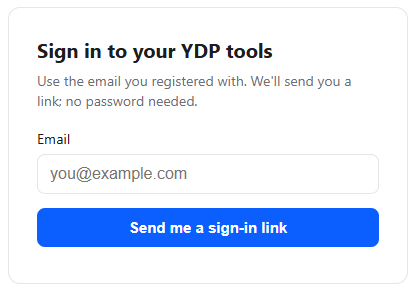
There's no password. You enter your email address, we send you a sign-in link, and you're in. Here are the steps:
|
01
|
Open the sign-in page and enter your email Once it's ready, we'll share the new Product Change Tracker URL that takes you to a sign-in page. Enter the email address associated with your YDP subscription and you'll get a sign-in link sent to your email. |
|
02
|
Open the link on the same device Check your inbox on the same device you're using and click the sign-in link. |

|
03
|
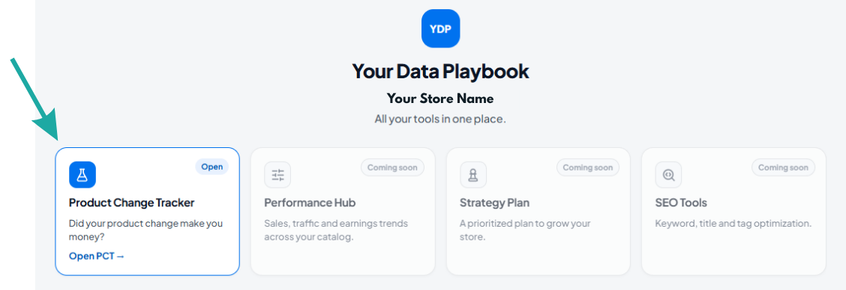
You'll land on the tools page with the Product Change Tracker The link will then take you to the landing page for your YDP tools. Just click on 'Product Change Tracker'. |
💡 You'll stay signed in on the same device and browser unless you clear your cookies or sign out, so you can bookmark the link for easy access.
What will your change data look like?
The new tool took over tracking on October 25, so here's how your changes will be evaluated:
|
Changes made up until Oct 24 These changes will only be evaluated in the spreadsheet version of the Product Change Tracker We'll load your previous change results in the new tool, so you can see your change history in one place. These won't be re-evaluated in the new tool, so you may not see full details on these changes in the dashboard.
|
Changes made from Oct 25 onward These are tracked and evaluated in the new tool only. You'll see the full picture for each change: how earnings, views and units sold compare with expected performance, and the change result. These changes won't appear or be evaluated in the spreadsheet version. |
*Note: These dates refer to the date the change was made (not the date you log or submit the change).
In short: check the new tool for changes made from October 25 onward, and check the spreadsheet if you need details on any changes made before then.
Your dashboard at a glance
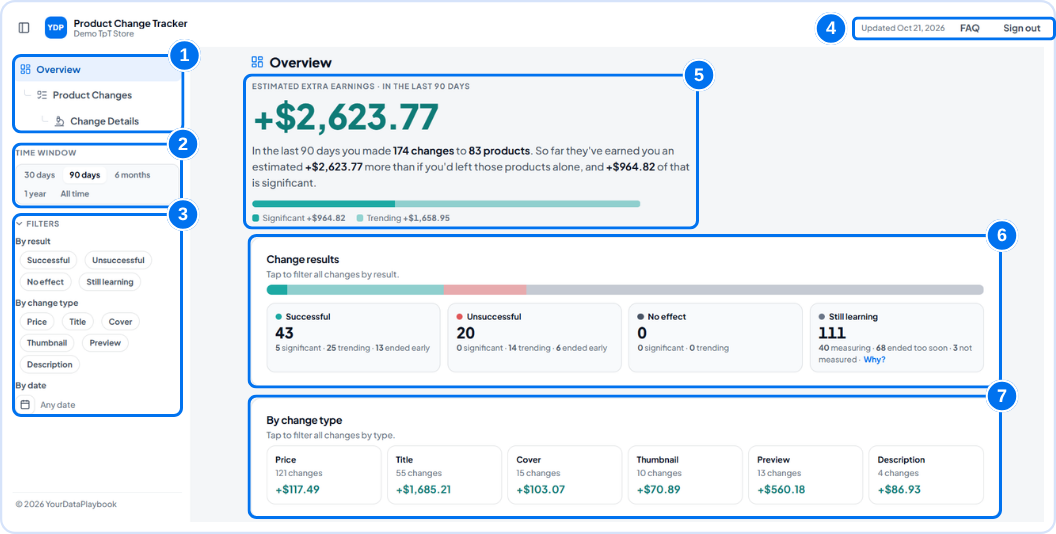
The Overview page is where you'll land every time. Here's what each numbered area does:
|
1
|
Navigation. Takes you to specific sections of the dashboard: Overview for the high-level view, or Product Changes and Change Details to drill down into more specifics on your changes. |
|
2
|
Time window. Select the time period you want to look at. |
|
3
|
Filters. Filter by result or change type, or select a specific date range to review. |
|
4
|
Date updated & FAQs. Shows the date of the latest data available in the dashboard. You can also access FAQs about the tool, or sign out, if needed. |
|
5
|
Overview. Get a high-level summary of your change performance for the selected time window. |
|
6
|
Change results. A breakdown by change result. Click one or more change results to filter the dashboard. |
|
7
|
Change type. A breakdown of your changes by type. Click one or more change types to filter the dashboard. |
What happens next
Later this week, you'll get an email with the link to access your Product Change Tracker. Until then, you don't need to do anything else yet.
Your feedback helps shape the beta!
As you review your changes and incorporate the new version of the Product Change Tracker into your workflow, please let us know how it's working for you so we can continue improving the tool.
Questions? Reach out to us at [email protected]